|
|

Once you have setup all your CNC
parameters (see below) it is so easy to send DNC files to
your CNC machine. If you have a file already open in the editor
window, all you have to do is press the big Window icon -
or press F3. Too many dnc software packages have, in our opinion,
become too cluttered and difficult to use by non-computer
literate personnel - we have tried to make our dnc software
program as easy as possible to use with the minimum number
of mouse clicks and non-essential icons.
There is no limit to the size of files you can send to your
CNC, so you can drip-feed incredibly large files with no loss
in speed.
|
| |
|

|
|
Many free file transfer programs,
such as Windows Terminal and many other DNC software packages
just don't have enough "tweaks" to enable you to
send successfully to your CNC. This is because many CNC machines
are very temperamental about the way that data is transferred
to it - it has to be just right or it won't work...
Our dnc4U software has many such tweaks for successful file
transfer; we have included many essential parameters to help
you get it right...
There are several different types of DNC send transfers
with dnc4U.
Block Send. This is the most common type of
transfer and is used when simply sending to your CNCs memory.
It takes the NC code and sends it block by block.
Drip Feed. Sending in drip-feed mode creates
a temporary image of your file. This has a double advantage.
First it is so much faster to send data from your local hard
drive, than it is to drag the data off a remote network drive.
Second, should your file be located on a server, and the server
crashes, transfer is not aborted because the file is no longer
there. This is very important on long jobs taking several
hours or overnight light outs jobs. The last thing you need
is to walk into the jobshop in the morning to find the CNC
hung there because the network has crashed.
Turbo Drip Feed. This mode is basically the
same as above, but the file is not shown scrolling on screen,
and all statuses are updating just once a minute. This makes
for even faster transfer.
Executive Tape. This mode makes a perfect copy
of the file and transfers it. Unlike drip-feed or block send
where the file may be transformed from your NC code to code
acceptable by your CNC - for eg end of block transformation
or any send before or send after file CNC control codes, this
mode is totally unchanged. This is useful for making backups
of your CNCs executive tapes.
Drip In X Byte Chunks. This feature is very
useful with some older CNC & PC combinations and drip-feeding.
Fanucs for example will only issue an XOFF when there are
less than 10 bytes in it's receive buffer. Responding to this
fast enough can be a challenge for older PC's. If you drip
at say 9 byte chunks, then there is much less chance of a
buffer oveflow on the CNC.
Com Ports
dnc4U lets you set up as many as 64 CNC machines, with serial
ports com1 to com128; more than adequate for the small, medium
or large machine shop. This is a standard configuration, no
messing about with upgrades like other DNC software packages
that require more cash if you want to add more CNCs !
Because you can use a dedicated com port for each of your
CNC machines you can easily use multi-port serial cards inside
your computer thus eliminating those messy switch boxes! dnc4U
fully supports these type of cards, as well as "normal"
serial ports, USB devices and wireless/RS232/ethernet devices
too.
We recommend Keyspan
USB to RS232 converter cables, they are reliable, cheap
and easily available in the US and elsewhere. They work with
Vista straight out of the bubble pack! If you already have
a USB to RS232 and it only works one way, the Keyspan will
almost certainly work! In the UK we have bought them from
here,
elsewehere they are also readily available and they work!
|
| |
|

|
| |
|
Baudrates from 150 to 460800
are supported. Detect available com ports. Keep the com port
alive so it's always online, or open and close between sends.
You can force the state of the CTS and/or DTR pins to go high
as you open the com port - essential for many CNC that require
a remote device to be online before it will open it own comms.
dnc4U uses the standard ISO/ASCII character set of nearly
all modern CNC machines or EIA for some older controllers.
dnc4U supports XON/XOFF, RTS/CTS Haas Xmodem and Heidenhain
Blockwise handshaking protocols with two different methodologies.
You can use the CPU interrupt for the fastest response with
a 16550 UART, or a polling method that looks for the state
of the buffer or pins prior to sending, this has application
if your computer cannot respond fast enough to XOFF characters,
and so handshaking is ineffective.
|
| |
|
Send Parameters
These are the tweaks that allow you to send your files to
your CNC. What seems like an essentially simple matter of
just sending a file to your CNC can in many cases turn you
into a gibbering wreck and can be very frustrating, thats
why we include these to make your life easier...
|
| |
|

|
| |
|
You can send a series of characters
to your CNC both before and after file transmission. This
is because many CNC need specific characters to "tell"
it that comms is about to start or finish. dnc4U lets you
setup these characters as a series of ASCII values (since
many of these characters cannot be types at the keyboard)
Include delays in the character setups, essential to drip-feed
to a Fadal.
dnc4U allows you to select different standard or custom End-of-Block
characters as different CNC can require different sequences.
You can setup data packet delays of up to 500ms between each
block and 25ms between each character that you send to the
CNC. In many cases a block delay of just a few ms will cure
many obsure communication problems.
You can choose to send your NC files block by block or as
fixed-sized packets of data. Normally you would just send
block by block, for upload and downloads to memory, but for
example if you were drip-feeding, you can choose either drip
or turbo-drip for the ultimate in transfer speed.

Many CNC require that a remote device is present before it
will open its own comms, you can either wait for an XON before
sending, or any character at all, in which case this process
is automatic, or you can make a window pop-up that opens the
com port and waits for you to setup the CNC and then press
the button to start transfer.

dnc4U also supports old fashioned paper-tape machines. You
can specify tape leaders/trailer etc. dnc4U comes with all
the letters pre-set for man-readable leaders, and these are
fully customisable to create your own versions of these letters
if you require.

|
| |
|
Sending Files
We have tried to make dnc4U really easy to use. We have tried
to keep the number of click to a minumum. The easiest way
to send a file is to just open up the file into the editor
and press "Send Window" icon. Just one mouse click!
Or you can select files from a normal file dialog box. You
can select multiple files from the dialog box and send sequentially.
You can repeat count how many times you want to send any file.
If you need to send and store executive tapes, you can, if
your tool breaks some way into a file, you can start the DNC
from exactly the point you specify in the file and restart
from there.
dnc4U keeps a track of the last files sent, so you can easily
just resend if you need to start again. You can find a file
quickly using the search and send. You can send in binary
rather than text mode.
|
| |
|
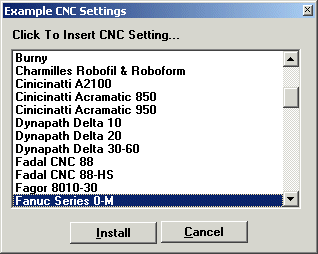
Example Setting
To get you started we have included a list of popular CNC
machines and their settings. These are starting points, since
many of the simple parameters such as baudrate may have been
altered, but will nontheless get you going. You should note
that if your CNC is not in the list, its not that we can't
communicate with it, its just that we may not have included
it - it will almost certainly work, but it may need a bit
more trial and error on your part
|
| |
|
|
| |
|
Folders
Each CNC can, if you want to, have its own different send
and receive folders so that you can keep files that are proven
separate from files that have been received back from your
CNC.
In addition you can set up to eight different file extensions
for each folder. This is extremely useful if you want to differentiate
between customers without having to setup different folders
for each one.
|
| |
|

|
|
Wireless
If you use either an ethernet to Rs232 or a wireless device,
then dnc4U will send and receive files direct to these devices
by creating a direct TCP/IP socket, there is no need to use
virtual or port re-director software.
If however you should choose to use your wireless hardware
vendors virtual ports, you can. These virtual com port are
seen by dnc4U just like any other com port on your computer.
dnc4U does not "know" any difference between these
virtual ports and the com ports that may be around the back
of your computer and they behave exactly the same. As a visual
aid dnc4U has a wireless monitor that shows graphically your
wireless devices and whether they are online or not. You can
also PING these devices to test they are online.
|
| |
|

|
|
ftp
If your CNC supports ftp transfers then your data transfer
will be so much faster, in the gigabits rather than kilobits
of Rs232
|
| |
|

|
|
Queue Files
If you need to be able to setup a list of files, either for
your own use or for someone else, the DNC queue lets you save
away a list of files that can be picked off individually or
queued for DNC. This is great because it saves the operator
either wondering what files to send and having to pick them
off laboriously every time. You can even set it up so that
your most used files are always at your fingertips. Each CNC
can have its own schedule.
If several files are selected then they are sent one after
another to your CNC machine.
|
| |
|

|
| |
|
Historical Log File
dnc4U keeps a track of all files sent and received. Not only
does it keep this track, but all you have to do is "Repeat
Action" and the file will be sent to exactly the same
cnc again.
|
| |
|

|
| |
|
| |
| |
|
| |
|


